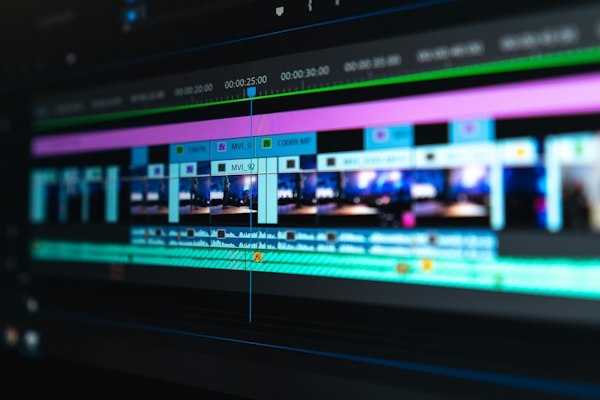
Silence killing is one of the highest-ROI edits you can make to talking-head video. A 20-minute video recording typically has 3-6 minutes of dead air, extended pauses, and "um" gaps spread across it. Manually cutting each one takes 30-90 minutes. AI silence removal does it in under 2 minutes. This is the kind of feature that actually changes whether editing is a sustainable habit or a dreaded chore. As part of the broader AI video editing guide for creators, silence removal might be the single feature with the best return on the time you invest learning it.
The tools that do this well — and do it differently — are worth comparing directly. Here's the honest breakdown of every meaningful AI silence-cutting tool available in 2026.
Time math: If you post 2 videos per week and manually cut silence, that's roughly 2-4 hours per week on a task AI can eliminate. Over a year, that's 100-200 hours reclaimed. At any reasonable value of your time, AI silence removal pays for itself by the second video.
CapCut Smart Cut
CapCut — Smart Cut
Smart Cut scans your clip, identifies silence segments above your threshold duration, and marks them for automatic removal. You review the proposed cuts before applying. Fast, reliable for single-speaker footage, and the best free option available.
CapCut's Smart Cut is the right starting point for most creators because it's free and it works. The interface is straightforward: open your clip, tap Smart Cut, set your minimum silence duration (0.3-1.0 seconds typically), and the tool generates edit points. You can toggle individual cuts on or off before applying, which is the right workflow — AI misses the occasional cut where someone takes a deliberate dramatic pause.
Smart Cut performs best on single-speaker, clear-audio footage. Background music, room echo, multiple speakers talking over each other, or noisy environments reduce accuracy. For creators shooting in a home office or ring-light setup with a lapel mic or directional microphone, Smart Cut handles the job cleanly. The detailed breakdown of CapCut's full AI toolkit is in the CapCut AI features guide.
Descript — Silence Removal + Filler Words
Descript
Descript goes beyond silence removal. It transcribes your video, identifies silence gaps AND filler words (um, uh, like, you know), and lets you remove them all with one click. The transcript-based editing workflow also means you can edit your entire rough cut by editing text.
Descript's approach is fundamentally different from other silence-removal tools. Rather than just detecting audio gaps, it transcribes everything you say, then lets you interact with your video as if it were a document. The "Remove Filler Words" feature scans the transcript for common verbal fillers and marks them for deletion — one click removes every "um" and "uh" from the entire video.
This is where Descript pulls ahead for long-form content. A typical 20-minute talking-head video might contain 80-120 "ums" and 40-60 extended pauses. Manually cutting these from a timeline takes 45-90 minutes. Descript's automated removal does it in about 3 minutes, with a review step that lets you restore any cuts the AI made incorrectly. For the creator publishing weekly long-form video, this workflow change is significant. The Descript vs CapCut vs Premiere comparison covers the full workflow implications.
Gling — Purpose-Built Silence Remover
Gling
Gling does one thing: removes silence and bad takes from raw footage. It's purpose-built for this use case. Upload raw footage, get back a cleaned edit. Exports to Premiere, DaVinci, or Final Cut Pro for final editing.
Gling's positioning is specific: it's the first step in your editing workflow, not the last. You upload raw footage from a video session — even if you've restarted and done multiple takes — and Gling identifies bad takes, removes silence, and produces a cleaned-up timeline. Crucially, it exports directly to Premiere Pro, DaVinci Resolve, and Final Cut Pro as project files, so you get the silence-removed rough cut inside your existing editing environment.
For creators who are already comfortable in Premiere Pro or DaVinci Resolve and don't want to switch to Descript's different paradigm, Gling is the logical choice. It adds AI silence removal to your existing workflow rather than replacing it. The free tier allows a limited number of minutes per month — enough to test if the workflow fits before committing to Pro at $10/month.
Adobe Premiere Pro — Auto Edit AI
Adobe Premiere Pro — Auto Edit
Premiere Pro's Remix and Text-Based Editing features include silence detection. The Text-Based Editing workflow lets you edit video by editing the transcript, similar to Descript. Built into the CC subscription at no extra cost.
Premiere Pro added Text-Based Editing a couple of years ago, which includes the ability to delete transcript segments and have the corresponding video automatically cut. It's not as refined as Descript's implementation — the workflow is slightly clunkier and the filler word detection isn't as robust — but it's functional and included in the Creative Cloud subscription. If you're already paying $57/month for CC, there's no reason not to use it.
Compare the Full Video Editing Toolkit
CapCut vs Descript vs Premiere Pro — features, pricing, and workflow fit for 6 creator types.
See Full ComparisonHow to Choose the Right Tool
You're a TikTok, Reels, or Shorts creator: CapCut Smart Cut. Free, fast, mobile-friendly. No reason to pay for this use case.
You make long-form YouTube videos (10+ minutes) or podcast video: Descript. The filler word removal alone recovers the $24/month in time savings. The full transcript editing workflow accelerates your entire rough cut.
You use Premiere Pro, DaVinci Resolve, or Final Cut Pro for your final edit: Gling. Upload raw footage, get a silence-removed project file in your preferred editor. Best of both worlds.
You're already on Creative Cloud: Try Premiere's Text-Based Editing before paying for additional tools. It's functional enough for many workflows.
Best Practices for Silence Removal
A few things learned from working with all these tools that don't show up in the marketing materials:
Always review auto-cuts before applying. Every tool makes occasional mistakes — cutting a deliberate pause for dramatic effect, or cutting mid-breath in a way that sounds jarring. A 3-minute review of the proposed cuts prevents the frustration of discovering audio glitches after export.
Leave a little breathing room. Set your silence threshold to cut gaps of 0.5 seconds or more, not 0.3. Cutting too aggressively makes speech sound rushed and robotic. The goal is to remove dead air, not to make you sound like you're speaking without ever breathing.
Process audio separately if quality matters. Silence removal works better on clean audio. If your recording has background noise, running it through an AI audio cleaner (Descript's Studio Sound, or Adobe Podcast Enhance) before silence removal produces cleaner cuts. See the AI voice and audio tools category for dedicated audio enhancement options.
Silence removal is the gateway AI editing feature — it's the one that converts skeptics. Once you've done it the AI way once, you won't go back to manually hunting for pauses on a waveform. For the full picture of what's possible with AI editing beyond silence removal, the AI for content creators overview covers every major category.