AI for Travel Photography Enhancement and Editing
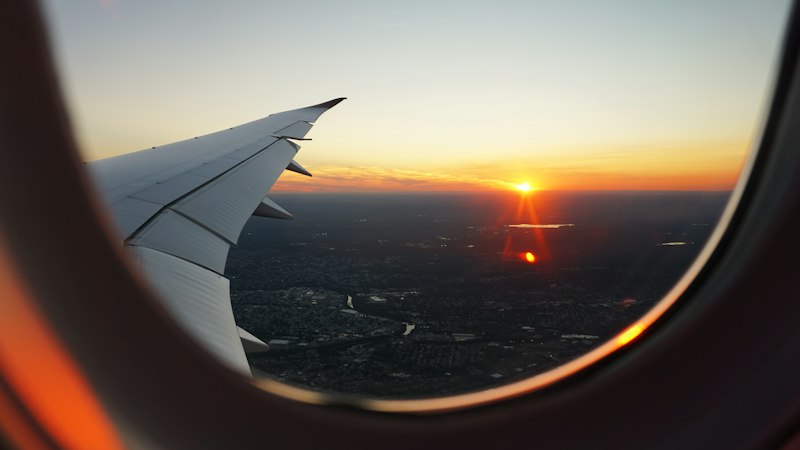
You're in a new city at golden hour. Light is incredible. You fire off 200 shots. By the time you're back at your accommodation, you've got 200 photos that need editing before they're Instagram-ready.
This is the travel creator's workflow: shoot a lot, edit fast, post within 24 hours to stay relevant. AI changes the game here. Not because it makes your photos look "AI-edited"—good AI enhancement is invisible. But because it cuts your editing time in half while actually improving quality in ways that manual editing would take you 10 minutes per shot to achieve.
This post is part of our comprehensive AI Tools for Travel Content Creators Guide, which covers everything from scripting to monetization. Here, we're going deep on the technical side: how to enhance, upscale, and color-grade travel photos with AI.
What AI Enhancement Actually Does for Travel Photos
Let's be clear about what "AI enhancement" means. It's not magic—it's informed upscaling, noise reduction, and generative filling based on patterns the AI learned from millions of reference images.
AI can:
- Upscale photos without losing detail. Traditional upscaling makes images blurry. AI-powered upscaling (like Adobe Super Resolution or Topaz Gigapixel AI) can take a 2000x1500px phone shot and enlarge it to 4000x3000px while actually adding fine detail—texture in fabrics, detail in faces, sharpness in backgrounds.
- Reduce noise in low-light shots. Shot a photo inside a dimly-lit temple at ISO 3200? AI noise reduction can clean that up without destroying texture.
- Auto-correct exposure and white balance. Shot in shadow? Backlit? AI can analyze the scene and suggest or automatically apply corrections.
- Remove unwanted objects and people. Generative fill tools can remove photobombers, power lines, or tourists from the background using AI inpainting.
- Generate missing sky or background. Some tools can extend or regenerate parts of the image based on context—useful if a cloud is blown out.
AI cannot:
- Replace composition or lighting decisions (if the shot is bad, AI can only help so much).
- Create a consistent color grading style across an entire trip without you setting parameters (though you can create presets to make it consistent).
- Know which photos are "keepers" and which should be deleted (you still have to curate).
The Best AI Tools for Travel Photo Enhancement
Adobe Lightroom + Super Resolution
Batch editing with native AI upscaling. Best value for travel creators.
Why it's the best for travel creators: Lightroom is where you're already doing your edits. Adding Super Resolution—available in Lightroom Classic and cloud Lightroom—means you can upscale and edit in one workflow. You open 50 photos from a day of shooting, apply a color grade, then apply Super Resolution to all of them at once. Takes an hour total instead of 3 hours of manual upscaling.
Pricing: $10/month standalone (Lightroom) or included in Creative Cloud ($55+).
Realistic workflow: Import travel photos → Organize by scene → Apply color grade to first photo → Sync grade to batch → Apply Super Resolution to all → Adjust individual photos as needed. Done.
Topaz Gigapixel AI
Standalone upscaling tool. Best quality for maximum enlargements.
Why it's worth it if budget allows: Gigapixel AI outperforms Adobe Super Resolution on enlargements larger than 2x. If you're shooting on a phone and need 8x upscaling for print or large social media posts, Gigapixel is noticeably better. It also has batch processing, so you can queue up 100 photos and walk away.
Realistic workflow: Export photos from Lightroom → Open Topaz Gigapixel → Select batch folder → Choose upscaling model (there are different presets for different content types) → Process overnight → Reimport upscaled images.
When to use it: You're printing travel photos for a portfolio or wall art. You're creating a high-resolution version for YouTube thumbnails or promotional materials. You're working with low-resolution phone photos and want professional-quality output.
Adobe Generative Fill (in Photoshop/Lightroom)
Remove unwanted objects and regenerate backgrounds with AI.
Why travel creators love it: You're hiking to a viewpoint, camera in hand, and a tourist family photo-bombs your shot. Or a power line runs right through the best composition. Generative Fill lets you select the unwanted element and remove it in seconds. The AI regenerates the background based on context—usually beautifully.
Realistic workflow: Open photo in Photoshop → Use selection tool to select unwanted object → Go to Edit → Generative Fill → AI regenerates that area → Accept or undo and try again. Most removals work first try.
Important note: If you're removing something significant (a whole person, a major landmark), it's good practice to disclose the edit. Light cleanup (removing a random tourist or a photobomber) is standard practice that doesn't require disclosure.
Upscayl (free)
Open-source AI upscaling. Best if budget is zero.
Why to use it: It's free and works. Results are slightly behind Adobe and Topaz, but for a travel creator starting out, it's genuinely useful for upscaling phone photos. Processes one image at a time (no batch mode), which is the main limitation.
Realistic workflow: Export photos → Open Upscayl → Select photo → Choose upscale model → Wait 2-5 minutes per photo → Save output. Good for supplemental upscaling, not your main workflow if you shoot volume.
Cleanup.pictures
Web-based object removal. No install required.
Why it's useful: Sometimes you don't want to open Photoshop just to remove a photobomber. Cleanup.pictures is browser-based. Open it, upload the photo, paint over the thing you want removed, hit remove—done. Free tier limits you to a few removals/month. Paid tier is $5/month.
The Realistic AI Enhancement Workflow for Travel
Day 1: Shoot
You're capturing content. 100-200 photos for a single location is normal for travel creators. Shoot RAW if your phone or camera supports it. RAW files have more information for AI enhancement to work with.
Day 2: Import and Cull
Import photos to Lightroom. Delete the obvious rejects (blurry, bad angle, duplicate shots). You should go from 150 photos to 40-50 keepers.
Day 2-3: Color Grade (AI-assisted)
Pick one hero photo from the shoot. Apply a color grade that matches your travel content aesthetic. The goal: establish the look for this location/trip. Once you're happy, sync that grade to all 40-50 photos. Adjust individual photos for exposure differences, but keep the color consistent.
Tip: Save this color grade as a preset. Next time you travel to a similar climate/lighting condition, you can apply it instantly to a new batch.
Day 3: Upscale
Once all photos are color-graded, apply Super Resolution to the batch. In Lightroom, this is built-in. Just select all photos and apply the enhancement. Processing happens in the background.
Day 4: Cleanup (if needed)
If any photos have unwanted objects or people, use Generative Fill to remove them. This typically takes 2-3 minutes per photo.
Day 4-5: Export and Post
Export photos at the resolution you need (1080px for Instagram, 4000px for print, etc.). Post to your platform. The entire workflow, including shooting, should take 5-6 hours for a full day of content across a trip.
Real math: Shooting and culling: 2 hours. Color grading with AI: 1 hour. Upscaling: 30 minutes (batch processing). Cleanup: 1 hour (maybe). Export and posting: 30 minutes. Total: 5 hours. Without AI enhancement, the color grading alone would be 3+ hours for 40 photos, and you'd still need manual upscaling.
RAW vs JPEG: Does It Matter for AI Enhancement?
Short answer: Yes, RAW is better, but JPEG is fine.
RAW files contain more color and tonal information than JPEGs. When you apply AI enhancement, especially upscaling or noise reduction, the AI has more data to work with on RAW files, which means better results.
But—and this matters for travel creators—RAW files are 3-5x larger than JPEGs, and they take longer to import and process. If you're shooting on a phone, you're probably shooting JPEG anyway (phones don't record RAW natively in most cases). And even on JPEG, AI upscaling still looks good.
Recommendation: If your phone or camera supports it, shoot RAW + JPEG or RAW + high-quality JPEG. Enhancing RAW gives you 20-30% better results. If you're shooting phone-only, don't stress about it—AI enhancement works on JPEG.
Batch Processing Travel Photos at Scale
You shot 3 days of content in a new city. That's 400+ photos. Doing these one at a time would take forever. Here's how to batch-process them:
In Lightroom:
- Import all 400 photos.
- Sort by date and location (Collections feature).
- Cull to 100 keepers across the 3 days.
- Create a master color grade for "Day 1" (Day 1 has its own look based on lighting).
- Sync that grade to all Day 1 photos.
- Repeat for Day 2 and Day 3.
- Select all 100 photos → Apply Super Resolution → Wait for batch processing to complete.
In Topaz Gigapixel (if using that instead):
- Export all color-graded photos from Lightroom as high-quality JPEGs.
- Create a folder on your computer: /Travel-Upscale/
- Drop all 100 photos into that folder.
- Open Topaz → Select that folder → Configure settings (2x upscale, choose the right model for photo type).
- Hit "Process Batch" and walk away. Processing 100 photos takes 30-60 minutes depending on your computer.
- Reimport upscaled versions back into Lightroom.
The time savings are massive. Batch processing 100 photos takes 1 hour. Doing them one at a time would take 8-10 hours.
How to Keep Your Travel Photography Style Consistent
One of the biggest challenges for travel creators is that different locations, times of day, and lighting conditions can make your feed look disjointed. AI helps solve this.
Step 1: Develop a color grading signature. Pick 2-3 travel destinations you've already shot. Open your best photos and notice the common threads in how you edit them (warm tones, cool shadows, high contrast, etc.). Write down the Lightroom settings: exposure, shadows, highlights, vibrance, saturation, color grading, etc.
Step 2: Create a preset. In Lightroom, save those settings as a preset. Name it something like "Travel Warm" or "Travel Contrasty"—whatever matches your style. You now have a formula.
Step 3: Apply to new trips. When you're in a new city, apply that preset to one photo. Adjust it for the local lighting if needed (you might need to dial up highlights if it's a very sunny location). Then sync to all photos from that day.
Step 4: Use AI to scale up. Apply Super Resolution to maintain consistency. The upscaling algorithm applies the same logic to every photo, which actually helps consistency—it prevents manual editing from introducing small variations.
Result: Your feed looks cohesive across all your travels, even though you're shooting in different countries with completely different lighting conditions.
Ethics: Disclosure and Authenticity
This matters. You're building a brand on authenticity. Your audience trusts the photos you post. Here's what you should and shouldn't do with AI enhancement:
Okay to do without disclosure:
- Color grading (this is standard photography).
- Upscaling for quality (viewers see the same composition, just sharper).
- Noise reduction in low-light shots.
- Removing minor photobombers or small unwanted objects (a tourist in the background, a power line).
- Exposure and white balance correction (also standard).
Good idea to disclose:
- Removing a significant person or object from the main composition (changes the meaning of the photo).
- Extending or regenerating sky or background (changes the reality of the scene).
- Compositing multiple photos together (this isn't just enhancement, it's creation).
How to disclose: A simple caption like "Enhanced with AI upscaling for clarity" or "Sky regenerated with AI for consistency" is honest and keeps trust. You're not hiding anything; you're being transparent about your process.
Bottom line: Enhancement is fine. Creation isn't—unless you're already transparent that you create composite/AI-generated content. Your audience's trust is worth more than saving 30 seconds on a caption.
Common Mistakes When Using AI Enhancement
1. Over-upscaling. You don't need 8x upscaling if you're posting to Instagram. 2x is usually enough for phone photos. Larger upscales can introduce weird artifacts. Use upscaling proportional to your needs.
2. Not adjusting per-photo after batch processing. Batch color grades and enhancements are a starting point. Every photo needs individual tweaks for exposure, depending on whether it was shot in shadow or bright light. Batch processing saves time, but it's not "set and forget."
3. Using too much noise reduction. AI noise reduction can smooth out fine texture details if you push it too far. It's better to use the minimal setting that still reduces noise visibly.
4. Forgetting that bad composition can't be fixed by enhancement. A blurry, badly framed photo upscaled perfectly is still a bad photo. Cull ruthlessly before enhancing.
5. Not saving originals. Always keep your original RAW or high-quality JPEG files. If you need to re-edit or repurpose a photo months later, you want the original data to work from, not the processed version.
Frequently Asked Questions
Can AI really enhance low-light travel photos?
Yes. Modern AI upscaling tools like Topaz Gigapixel AI and Adobe Super Resolution can recover detail in shadows and reduce noise in low-light shots. Results depend on how dark the original photo is, but most travel creators see 20-40% quality improvement.
Is AI-edited travel content against Instagram's rules?
No. Instagram and other platforms allow AI enhancement and editing. Where you need to be transparent is if the AI made structural changes (removing objects, adding skies) rather than enhancement. Light editing and color grading are always fine to post as-is.
How much does it cost to edit travel photos with AI?
Costs vary widely. Free tools like Upscayl exist for basic upscaling. Adobe Lightroom + Super Resolution runs $10-15/month. Professional tools like Topaz Gigapixel AI cost $200 one-time. For travel creators on budgets, Adobe is the best value since you're already using Lightroom for edits.
Which AI tool should I use for batch editing travel photos?
Adobe Lightroom's batch editing with Super Resolution is fastest for consistent edits across a whole trip. Topaz Gigapixel AI is better if you need maximum quality and don't mind slower processing. Upscayl is free but processes one photo at a time.
Should I edit raw or JPEG travel photos with AI?
Always start with RAW if possible. RAW files have more color and detail information for AI enhancement to work with. If you're shooting JPEG, AI upscaling still helps, but the improvement is less dramatic than with RAW.
Next Steps
Start with Adobe Lightroom if you don't already use it. The Super Resolution feature is built-in, and $10-15/month is low risk. Edit one day's worth of travel photos (20-30 photos) using the workflow outlined above. You'll see the time savings immediately.
Once you're comfortable with the process, experiment with Topaz Gigapixel AI if budget allows. The quality bump is real if you're working with low-resolution source material or need prints.
And remember: AI is a tool to amplify your creativity, not replace it. The composition, the story, the lighting decisions—that's all you. AI just makes the technical execution faster and better.
For more on travel content creation, check out our guides on AI-powered vlog editing and creating itinerary content with AI. And if you're ready to monetize your travel content, read our post on AI for travel monetization strategies.