You're streaming live in 2026. Your competition isn't just other streamers on the same platform. It's any creator with a production setup that looks professional, moves at lightning speed, and adapts to their audience in real time. AI isn't optional anymore. It's how you stay competitive.
This guide covers the complete landscape of AI tools for live streamers. Not just the flashy overlays or the viral clip tools, but the full infrastructure: how to use AI for moderation, graphics, multi-platform broadcasting, automatic highlight extraction, and the production workflows that turn a casual stream into something worth rewatching.
Whether you stream on Twitch, YouTube, or both, you'll find the specific tools and workflows that fit your setup. And more importantly, you'll understand which AI tools actually save you time and which ones are just adding overhead to your production.
Who this guide is for: Live streamers at any scale who want to level up their production value, audience engagement, and content repurposing without hiring a full production team. Whether you're a Twitch streamer with 100 viewers or a YouTube live creator with 50K, these tools apply.
Why AI Matters for Live Streamers in 2026
The streaming landscape has fundamentally changed. In 2020, being "live" was enough. People showed up to watch real-time gameplay, real-time commentary, real-time authenticity. In 2026, live streaming is commoditized. Thousands of streams are happening right now in any major category.
The streamers winning are the ones doing three things: producing high-quality overlays and graphics that look professional, moderating chat at scale so their community doesn't become a cesspool, and repurposing their best moments into short-form content that drives discovery on TikTok, YouTube Shorts, and Instagram Reels.
All three of those used to require either a technical co-host, hiring a mod team, or spending 10 hours post-stream editing clips. AI changes that math completely. You can now do all three solo, with quality that used to require a team.
The Five Core Areas Where AI Helps Streamers Most
AI for streaming clusters around five specific problems. Not every tool solves all five, but understanding the landscape means you can build a stack that addresses your actual bottlenecks.
1. Overlays and Graphics Generation
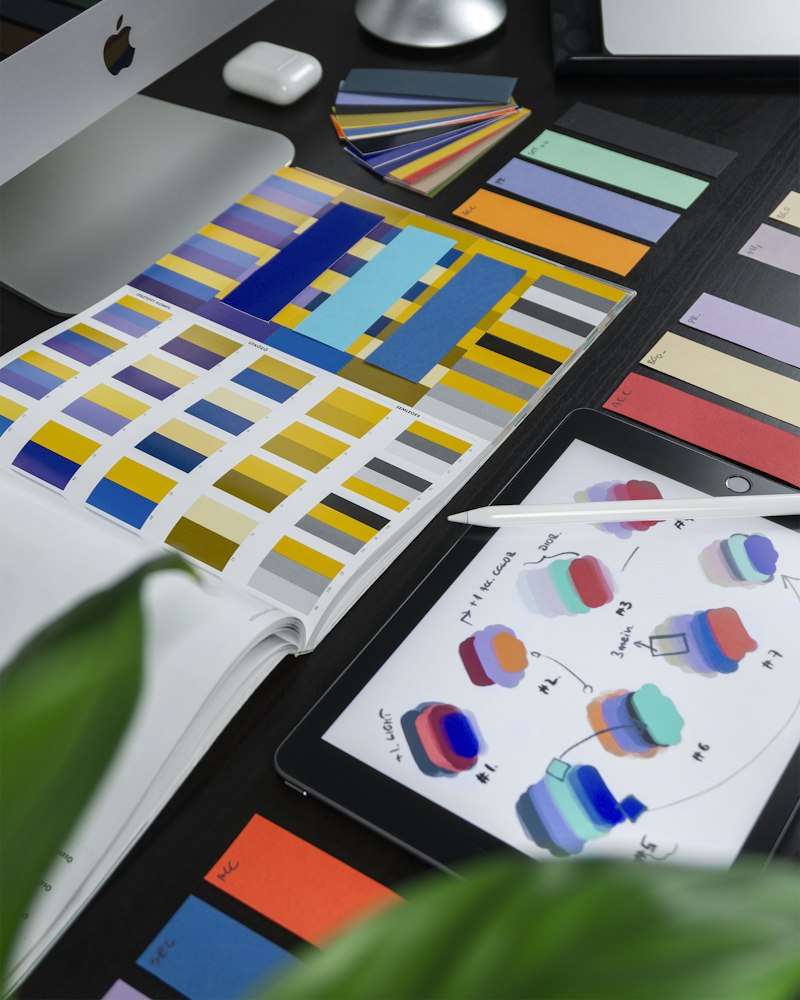
Your overlay is the visual identity of your stream. It's also one of the most time-consuming parts of production setup. AI tools for stream overlays can generate custom designs from text descriptions, adapt existing overlays to new themes, and create alert graphics that match your brand in minutes instead of hours.
Canva AI is the most accessible tool for streamers because it combines template-based design with AI image generation. You can create a complete overlay suite from scratch in under an hour, then adjust elements as your stream evolves. Midjourney is the best option if you want truly custom, high-quality graphics that stand out.
Canva AI — Best for Stream Overlays
Generate custom overlays, alerts, and graphics from text. Templates + AI = professional results in minutes.
2. Chat Moderation and Community Management
AI chatbot moderators handle the hardest part of scaling a stream: keeping chat healthy. They automatically detect spam, slurs, botting, and toxic behavior. They can timeout violators, respond to common questions, and keep your chat moderation running 24/7 even when you're offline.
Tools like Bot Sentinel and Nightbot's AI integration use natural language processing to understand context, not just keyword matching. This means fewer false positives and a chat that actually stays welcoming without becoming sterile.
3. Automatic Clip and Highlight Extraction
The best moments in your stream aren't random. They're moments where something unexpected happened, where your audience reacted strongly, or where you said something quotable. AI clip extraction tools identify those moments automatically and turn them into polished, ready-to-post short-form content.
Opus Clip is the industry standard here. Feed it your stream VOD, and it generates 5-10 highlight clips automatically, formatted for TikTok, Shorts, and Reels with captions and music. The time you save is massive — what would take 5 hours of manual editing happens in 20 minutes.
4. Multi-Streaming to Multiple Platforms Simultaneously
AI-powered multi-streaming lets you broadcast to Twitch, YouTube, and other platforms at the same time without duplicating the setup or dealing with latency issues. Some tools use AI to automatically adapt your stream for each platform's format and recommendations.
Tools like Restream and Streamyard handle this, with some featuring AI-powered chat consolidation so you can see and respond to comments from all platforms in a single interface.
5. Stream Enhancement and Production Quality
AI can automatically enhance your stream quality in real time. Better lighting adjustment, background blur, noise suppression, and even automatic camera framing for multi-camera setups. Descript and Opus Clip both offer production enhancement features that used to require expensive hardware or editing software.
Building Your AI Stream Setup: A Step-by-Step Roadmap
The mistake most new streamers make with AI tools is trying to implement everything at once. You end up with a bloated, confusing production setup that actually slows you down. Here's a better approach.
Week 1-2: Choose Your Primary AI Tool
Pick one tool based on your biggest pain point. If overlays are taking you hours, start with Canva AI. If chat moderation is becoming overwhelming, start with an AI chatbot. If content repurposing is your bottleneck, start with Opus Clip. Don't try to build the full stack yet. Just get one tool working smoothly in your workflow.
Week 3-4: Add a Second Tool
Once your first tool is saving you real time, add a second. This is usually a chat moderation tool or a clip extraction tool. Get comfortable with two tools before expanding further. Many successful streamers run entire streams with just two or three AI tools.
Month 2+: Build Your Full Stack
After a month, you'll know which parts of your workflow need AI most. Now you can add specialized tools. Some streamers need Streamlabs AI alerts. Others need better graphics generation. Others need multi-streaming. The point is that you're building from experience, not from a generic list.
Stack tip: Most professional streamers use 3-5 AI tools, not 15. The winners aren't the ones with the most tools. They're the ones where every tool in their stack solves a real, specific problem in their workflow.
The AI Streamer Tech Stack: Tools That Actually Work Together
Here's what a realistic, high-performing streaming setup looks like in 2026. This isn't "use all of these." It's "here are the categories and specific tools that make sense for each."
Graphics and Overlays
- Canva AI — Template-based with AI generation. Best for quick, professional overlays.
- Midjourney — Best for custom, unique graphics if you want to stand out.
- StreamLabs — Not AI-driven, but integrates with alerts and overlays seamlessly.
Chat and Community
- Nightbot with AI — Moderation and auto-response with natural language understanding.
- Bot Sentinel — AI-powered toxicity detection and spam prevention.
Clips and Highlights
- Opus Clip — Automatic detection and formatting of best moments.
- Descript — Transcript-based editing for post-stream clip creation.
Multi-Streaming
- StreamYard — Browser-based, multi-platform streaming with built-in production features.
- Restream — Multi-platform simultaneous streaming with consolidated chat.
Analytics and Growth
- VidIQ — YouTube stream optimization and growth recommendations.
- Metricool — Multi-platform analytics for streamers across multiple channels.
Common Mistakes Streamers Make With AI Tools
Not every experiment with AI tools goes smoothly. Here are the biggest mistakes and how to avoid them.
Mistake 1: Overthinking the Overlay
Streamers often spend weeks perfecting overlays that viewers barely notice. An overlay should be clean, professional, and get out of the way. Use AI to generate quick options, pick one that looks good, and move on. Your content matters infinitely more than your overlay design.
Mistake 2: Running AI Moderation Too Aggressively
AI chatbots are powerful, but they can also kill chat engagement if you set them to moderate too strictly. The best approach is to use AI for clear-cut violations (spam, slurs, repeated rule-breaking) and let ambiguous stuff go. Chat should feel like a real community, not a sterile zone.
Mistake 3: Relying on Automatic Clips Without Review
AI clip extraction is fast, but it's not always perfect. A clip might be technically perfect but missing context. Spend 2 minutes reviewing each AI-generated clip before you post it. You'll catch issues and actually improve the output quality over time as you give the AI feedback.
Mistake 4: Ignoring Multi-Streaming Until You "Need" It
Multi-streaming to two or three platforms simultaneously seems complicated. But it's not anymore. If you're serious about growth, test it early in your streaming journey. It doesn't require extra setup; it just requires choosing the right tool. Many streamers who expand to YouTube or TikTok wish they'd started multi-streaming months earlier.
Real Streamer Examples: How Top Creators Use AI
The pattern among successful 2026 streamers is consistent: they use AI for mechanical parts of production (overlays, moderation, clip extraction) and focus their human energy on entertainment, community interaction, and content direction.
A 5K concurrent viewer streamer might use: Canva AI for overlays (30 min per month), an AI chatbot for moderation (set and forget), Opus Clip for clips (20 min post-stream), and Restream for multi-platform (automatic). That's roughly 2-3 hours per month of setup for production infrastructure that used to require hiring a part-time editor.
Ready to Start Multi-Streaming?
Not sure whether to use StreamYard or Restream? We tested both extensively. Different strengths depending on your platform mix.
See the Full ComparisonAI Ethics and Disclosure for Streamers
You might be wondering: do I need to tell my audience I'm using AI tools? The answer depends on the tool. If you're using AI to generate overlays or handle moderation, no disclosure needed. If you're using AI to generate your voice or create a digital avatar of yourself, yes—you should disclose that.
The rule: If it involves creating something that could mislead people about who or what created it, disclose. If it's just using software to do production work faster, no disclosure needed. It's the same as not disclosing that you use OBS or Streamlabs.
Future of AI in Live Streaming
The trajectory is clear. Real-time AI features are getting better every month. By 2027, we'll likely see: live translation of streams (so you can broadcast to multiple language audiences simultaneously), AI co-hosts that actively engage with chat, automatic scene switching based on content detection, and predictive analytics that tell you what content direction will maximize growth.
The streamers who start experimenting with AI tools now will be way ahead of the curve when those capabilities become standard.
What to Do Next
Read the articles in the cluster above. Each one goes deep on a specific category of AI tool. Then pick one tool from this guide and commit to using it for two weeks. You'll know very quickly whether it fits your workflow.
The AI streaming ecosystem is moving fast. But the fundamentals are clear: use AI for mechanical work, keep your human energy for the parts that only you can do. That's how you build a stream that scales.