Your stream overlay is literally the frame of your content. Viewers see it before they see your gameplay, your commentary, or anything else. A professional overlay says "this person takes their stream seriously." A bad overlay says the opposite, and no amount of great content can overcome that first impression.
The problem: creating professional overlays used to require either hiring a designer or spending weeks learning design software. In 2026, Canva AI and other AI design tools have changed this completely. You can generate a professional overlay suite in under an hour with zero design experience. Read the full AI for Live Streaming guide for context on where overlays fit in your broader streaming setup.
Why Your Stream Overlay Actually Matters
Here's what an overlay does: it frames your content, displays your branding, shows alerts when viewers sub or donate, and creates visual continuity across your stream. A good overlay is invisible—viewers don't consciously notice it, but they feel the professionalism. A bad overlay is the opposite: it's distracting, it makes your stream look amateurish, and it actually reduces viewer retention.
Studies on stream professionalism show that viewers make a decision about whether to stay in the first 10 seconds. Your overlay is one of the first things they see. It either signals "this person is professional" or "this person is learning." AI makes it easy to signal the former.
The AI Overlay Design Workflow (Start to Finish)
Step 1: Choose Your Tool (10 minutes)
Two main options exist:
- Canva AI — Template-based with AI generation. Best for fast, professional results. Free tier is functional.
- Midjourney — AI image generation. Better for unique, custom graphics. Higher learning curve.
For 90% of streamers, Canva AI is the right choice. It's faster, it has Twitch-specific templates, and the results are immediately polished.
Step 2: Define Your Brand Colors and Style (10 minutes)
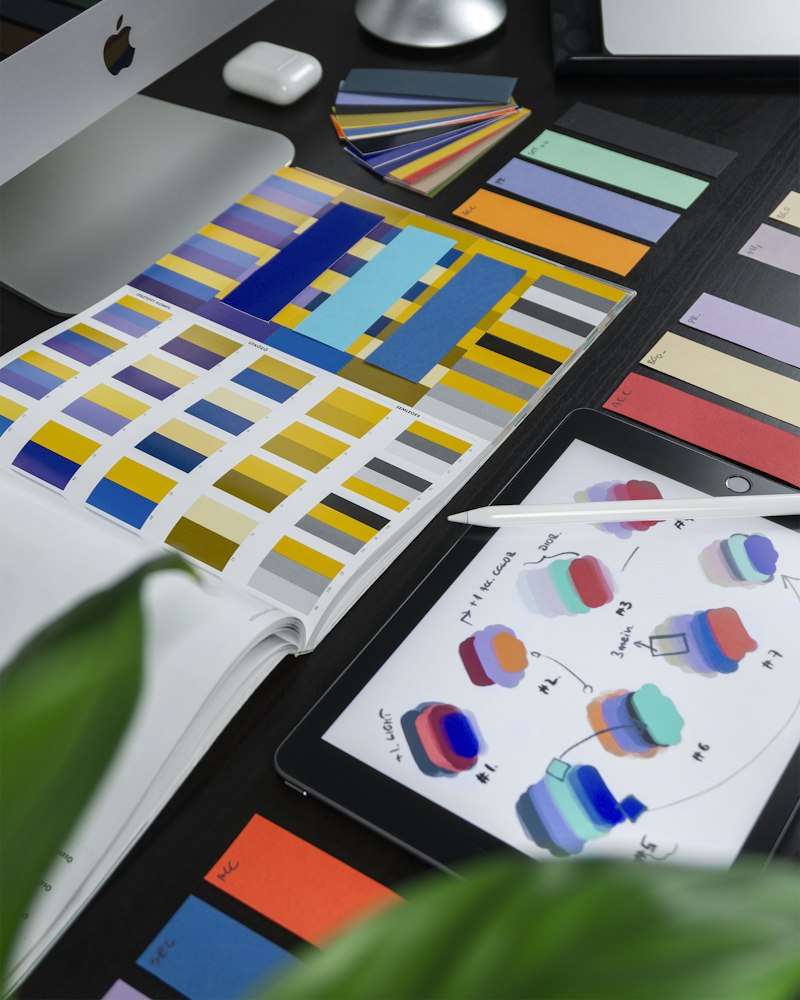
Before you generate anything, decide on 2-3 primary colors that represent your brand. Dark blue and neon green. Red and gold. Black and white. Keep it simple. Then write down the style you want: "gaming overlay with dark and professional vibe," or "colorful and energetic for a variety streamer," or "minimalist and clean for coding streams."
AI design tools work better when you give them specific direction.
Step 3: Generate Overlay Designs (20 minutes)
In Canva AI, use the text-to-image feature with a prompt like: "Twitch stream overlay design, dark blue and orange colors, professional gaming aesthetic, health bar alert box, chat area, webcam frame." Generate 3-5 variations. Look at each one. Canva AI will generate several design options per prompt.
Pick the one closest to what you want, then customize it. Change colors, move elements, adjust opacity, remove anything that doesn't fit. This customization step usually takes 10-15 minutes.
Step 4: Create Specific Elements (15 minutes)
Beyond the main overlay, you need: alert boxes (for subs, donations, raids), panels (for social media links, follower count, tip link), chat frames, and scene transitions. Canva can generate all of these. Create each one at the right resolution for your streaming software (OBS, Streamlabs, etc.).
Canva AI — Best for Stream Overlay Design
Template-based + AI generation. Twitch-ready exports. Professional results in hours, not weeks.
Step 5: Test in Your Streaming Software (10 minutes)
Download the overlays from Canva (PNG with transparent background), import them into your streaming software, scale and position them correctly. Test how they look during an actual stream. Make adjustments. You want overlays visible but not intrusive.
Common Overlay Elements and How to Create Them
Main Overlay
The base layer that sits on top of your content. Includes nameplate, social links, and decorative elements. Generate this first, then build other elements around it. Should be roughly 1920x1080 or 1280x720 depending on your stream resolution.
Alert Boxes
Appear when someone subscribes, donates, or raids. Design these with your primary color and brand style. Make them visually distinct but not obnoxiously bright. Generate 3-4 different alert styles for variety. Each should be roughly 640x360 pixels.
Panels and Info Displays
Show follower count, tip link, streaming schedule, or other information. These sit beside your main content. Generate panels that match your overlay aesthetic. Standard size is 300x300 or 320x180 depending on placement.
Chat Frames or Borders
If you display chat in your stream, frame it with a custom border that matches your brand. Generate a simple border design that doesn't interfere with readability. This is often just a decorative frame, not intrusive.
Advanced Overlay Customization
Once you have basic overlays generated, you can customize further:
- Animate elements — Some streaming software supports animated overlays. Canva can export as video, which you can import for subtle animations.
- Conditional elements — Use overlays that only appear during specific scenes. Create different overlay sets for "just chatting," "gaming," "creative," etc.
- Brand consistency — Use the same color scheme, fonts, and style across all overlays so they feel cohesive.
- Seasonal updates — Change overlays every few months to keep your stream feeling fresh. AI makes this fast now.
Tool Comparison: Canva AI vs Midjourney for Stream Design
Canva AI is faster for templates and ready-to-use overlays. You can have professional overlays in 1-2 hours. Midjourney is better for highly custom, unique graphics, but requires more skill and takes longer. The choice depends on whether you want speed or ultimate uniqueness.
Canva AI vs Midjourney vs Custom Design
Which tool is right for your overlay needs? Full comparison with cost and time analysis.
See the ComparisonAvoiding Common Overlay Mistakes
Mistake 1: Overlays Too Complex
The most common issue: overlays that are so detailed they distract from gameplay. Rule of thumb: your overlay should use no more than 20-30% of your screen space. The rest is your content. Clean overlays always look better than complex ones.
Mistake 2: Colors That Don't Contrast
If your overlay colors don't contrast well with your content, viewers will struggle to read text or see alerts. Test with bright game scenes and dark game scenes. Make sure overlays are readable in both.
Mistake 3: Using Inconsistent Brand Elements
If your main overlay has a certain color scheme but your alert boxes use different colors, it looks disjointed. Generate all overlay elements with the same style guide. Canva AI can do this if you give it consistent direction.
Mistake 4: Overlays Too Static
Update your overlays. Don't keep the same design for 6 months. Generate new versions seasonally. Streamers who change their overlays every 2-3 months feel fresher and more professional.
Exporting and Implementing Overlays in OBS and Streamlabs
Once you've created your overlays in Canva, export them at the right resolution and with transparency (PNG format). Then in your streaming software:
- Create a new scene or edit existing scene
- Add image source for your main overlay
- Position and scale to fit your canvas
- Set transparency if needed
- Add alert boxes and other elements as separate image sources
- Test and adjust positioning during a test stream
Most streaming platforms have tutorials for this, and Canva provides Twitch-optimized guides as well.
Real Streamer Example: Overlay Transformation
A 2K concurrent viewer streamer recently updated their overlays using Canva AI. Previous overlays were generic and took weeks to commission from a designer. New overlays: designed in 2 hours with Canva AI, saved 50+ hours of designer coordination, viewers commented immediately on the upgraded feel of the stream.
The point: professional overlays signal legitimacy. AI makes this accessible to solo streamers.
When to Use Professional Designers Instead
AI-generated overlays are good. Professional designers are better if you have the budget. But here's the reality: a well-done AI overlay beats a mediocre designer's work. And an AI overlay that you've customized and iterated on looks better than a generic Twitch template.
If you're growing seriously and can afford a designer (typically $200-500 for a full overlay suite), go for it. But don't let lack of design money stop you from streaming. AI overlays are completely professional.
Future of AI Overlay Design
By 2027, expect real-time overlay generation. You'll be able to describe what you want during a stream, and AI will generate and apply overlays in seconds. Animation and dynamic elements will become standard. Overlays that respond to game state, music, or audience interaction will become common.
What to Do Next
Sign up for Canva (free tier works), find the Twitch overlay template section, and generate 3 overlay designs using the prompt framework above. Spend 2 hours on it. See if you like the results. If yes, customize and deploy. If no, iterate.
Then read the full Twitch streamer guide and the AI for live streaming pillar to understand how overlays fit into your larger streaming strategy.
Your overlay won't make or break your stream. But a professional overlay signals that you take this seriously. And that matters on day one.