
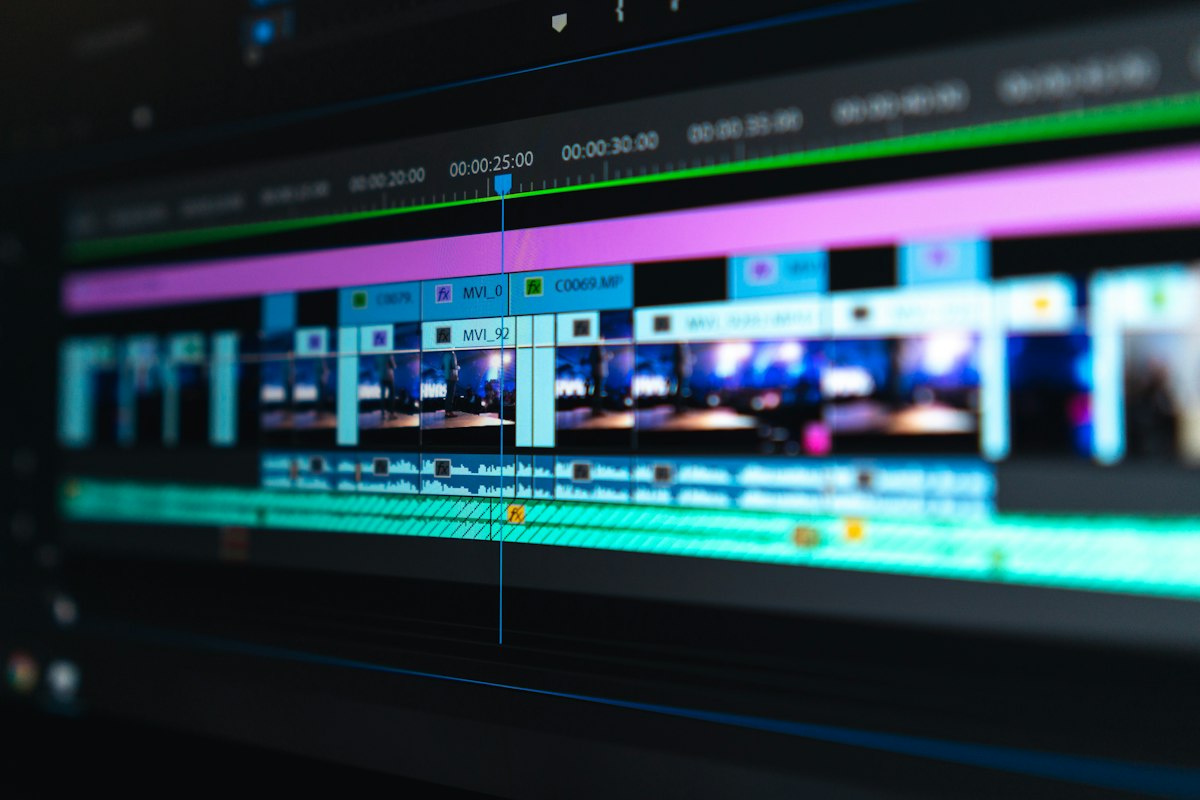
Multi-camera editing used to be the domain of professional production crews with $50,000+ in equipment and months of training. Today, a solo creator can shoot with three cameras, import the footage, and have AI sync everything automatically while you take a coffee break. This isn't hyperbole — it's what modern tools do now, and it's completely changing how creators produce higher-quality content faster.
For our complete guide to AI video editing for creators, we tested every major multi-camera editing workflow. Here's what actually works, and why you should care even if you think you're just a solo creator shooting one angle.
The shift: Multi-camera used to mean "more complex, more time." Now it means "more content, less time." The AI handles the mechanical work of syncing, switching angles, and color matching. You control the creative decisions. This is worth understanding even if you only shoot with two cameras.
Why Multi-Camera Matters (Even for Solo Creators)
Most creators think multi-camera editing is for big productions with camera operators. Wrong. You should care about multi-camera editing because:
- One shoot, three angles: Set up a wide shot, medium shot, and close-up facing the same direction. Record them simultaneously. You now have three times the editing flexibility with zero extra time shooting.
- More visual interest: Cutting between angles keeps viewers engaged. Staring at one angle for a minute feels boring. Multi-camera footage lets you cut every 5-10 seconds, which feels dynamic and professional.
- Faster editing: With AI handling angle selection, you spend less time scrubbing through footage looking for the good shot. You just pick which angle the AI should cut to.
- Professional look: Multi-camera editing is why professional videos look polished. You're not limited to one framing choice. You can show detail, context, and emotion in the same scene.
The practical reality: most creators should be shooting multi-camera if they have space for even two camera angles. It's not significantly more work, but it dramatically improves the final product.
How AI Syncs Multiple Camera Files Automatically
The biggest time sink in multi-camera editing was always sync. You'd record three cameras, import three separate files, manually mark sync points, and align everything frame-by-frame. This took hours.
Descript changed this. Their multi-camera sync analyzes the audio tracks from each file, finds matching sections, and automatically lines them up. It works even if cameras started recording at different times or recorded at slightly different frame rates. The AI literally listens for the same sound across files and aligns based on that.
The process is: record three cameras with any audio (even phone mics work), import all three files into Descript, mark which files are the same scene, and Descript does the sync. You get a multi-camera timeline where all three angles are aligned perfectly.
Other tools like CapCut handle multi-camera sync differently, but achieve the same result. The key point: manual sync is obsolete. AI handles it in minutes. For the full breakdown of all AI video editing tools, we've tested sync quality across platforms.
AI for Automatic Angle Selection
Once your cameras are synced, the next tedious task is deciding when to cut between angles. A professional editor watches the footage and decides: "wide shot for context, then cut to close-up for emphasis, then cut back to wide." This takes forever.
Modern AI tools can make these decisions for you. Here's how it works:
Motion-Based Switching
AI analyzes motion in each camera. If the speaker gestures, the AI cuts to the close-up where the gesture is visible. If they stand up, the AI might cut to the wide shot to show movement. You're not defining the logic — the AI detects movement and makes reasonable cutting choices automatically.
Sound-Based Switching
AI analyzes audio energy. If one microphone picks up louder audio, that camera might have been the primary subject. The AI can set rules: "when audio gets loud, switch to the close-up." Or "cut between cameras every 8 seconds to create rhythm."
Rules You Can Set
The best tools (especially CapCut's multi-camera mode and CapCut's Pro plan) let you set rules the AI follows. Examples: "prioritize the close-up camera," "cut every 10 seconds," "only cut when there's motion," "alternate between cameras." The AI handles the execution; you control the strategy.
Color Matching Across Cameras with AI
Here's the hidden problem with multi-camera shooting: the cameras almost never match. Camera A shoots slightly warmer, Camera B is more blue, Camera C is somehow oversaturated. When you cut between them, the color shift is jarring and looks unprofessional.
Manually color-correcting three cameras to match takes hours. You grade Camera A as your reference, then match Camera B's colors to Camera A, then match Camera C. If you want to change the overall grade, you have to adjust all three.
Modern AI color matching tools solve this completely. Tools like DaVinci Resolve's AI color match analyze Camera A, then automatically adjust Camera B and Camera C to match its color profile. This takes minutes instead of hours. Some tools even allow you to apply one grade to all three cameras at once, knowing the AI will adjust for each camera's unique characteristics.
Practical Workflow: Solo Creator Edition
Here's how a solo creator should actually shoot multi-camera:
Setup
Place your phone or camera 1 for a wide shot. Place camera 2 for a medium shot. Place camera 3 for a close-up or detail shot. All three should be framing the same scene from slightly different angles. Put your best microphone near the action (or just use one phone's mic — all three cameras can record it).
Record
Press record on all three cameras simultaneously. Do your content (interview, presentation, demo, whatever). Stop recording on all three. You now have three synchronized video files.
Import and Sync
Drop all three files into Descript or CapCut. Let AI sync them. This takes 2-5 minutes depending on file length.
Angle Selection
Set rules for when angles cut. Or just manually review the AI suggestions and approve them. Either way, the AI does 80% of the work.
Color Matching
Apply automatic color matching. Takes 1-2 minutes.
Export
You now have a professional-looking multi-camera edit with dynamic angle switching and consistent colors. Total AI-assisted time: maybe 30 minutes. Manual time: maybe 4-6 hours of your own work making creative decisions.
Descript vs CapCut vs DaVinci for Multi-Camera
Descript excels at multi-camera sync and handles angle selection well. It's cloud-based and handles large files well. The limitation: it's expensive ($24-72/month depending on plan) and the interface takes learning.
CapCut (the desktop version, not mobile) has native multi-camera support and is free. It's more limited on some features but absolutely capable for creator workflows. The advantage: it's free and familiar if you've used CapCut mobile.
DaVinci Resolve is the pro option. It's free (DaVinci Resolve Free) or $295 one-time (Studio). Multi-camera support is excellent, color matching is professional-grade. The learning curve is steeper.
For most creators, CapCut is the right choice: free, capable, familiar. For maximum power, DaVinci Resolve. For hands-off cloud workflow, Descript. For the full comparison, see our detailed comparison.
Common Issues and How AI Helps
Problem: Cameras are out of sync despite AI
Cause: One camera has lower audio or noisy audio. Solution: Provide clear reference audio. Make sure at least one microphone clearly captures the action. AI can't sync if there's no audio to sync to.
Problem: AI cuts to the wrong angle at key moments
Cause: You didn't set clear rules, or the AI is too aggressive. Solution: Review AI suggestions before applying. Manually override on critical moments. Use strict rules (cut every 10 seconds) instead of motion detection if automatic decisions are inconsistent.
Problem: Color matching looks weird after AI correction
Cause: Large differences between cameras confuse the algorithm. Solution: Shoot the same test scene with all cameras before the real shoot. Let AI see reference material. Use manual color adjustments to fine-tune after AI color matching.
Tips for Better AI-Assisted Multi-Camera Editing
- Expose cameras consistently: If one camera is much brighter or darker, color matching will look weird. Keep exposure within 1 stop across cameras.
- Use the same white balance: Don't shoot one camera under tungsten lights and another under daylight. The larger the color difference, the harder AI color matching has to work.
- Record test footage: Before your real shoot, record 30 seconds of the same scene with all three cameras. Use this to set color matching profiles. The AI learns from this reference.
- Keep audio clear: AI sync depends on audio. If there's talking, music, or ambient sound, sync works great. In silence, it fails. Keep some audio reference.
- Review AI decisions: Never trust AI 100%. Review the automatic angle selection and override on important moments. AI is a time-saver, not a replacement for taste.
Is Multi-Camera Right for Your Content?
Multi-camera editing works best for: talking heads, interviews, presentations, demonstrations, music videos, and any content where you want visual variety.
Multi-camera is overkill for: voiceovers, slideshows, screen recordings, B-roll heavy edits where you're cutting between different locations anyway.
Most creators should be shooting multi-camera for their primary content. If you're recording yourself talking for more than 2 minutes, three angles is almost always better than one.
For a complete understanding of modern video editing with AI, see our comprehensive guide on AI silence removal and AI color grading tools for related workflows.